Editing and image attachments
Tasks and epics are written in a Markdown editor. A task's completion conditions sit in a panel below the text, and tasks accept image attachments. Record verification results in the task body or history. Agents edit the same content as plain files in the project's shared folder. This page covers the editor and images; the file format is in Markdown file format.
Write tasks and epic details in the editor
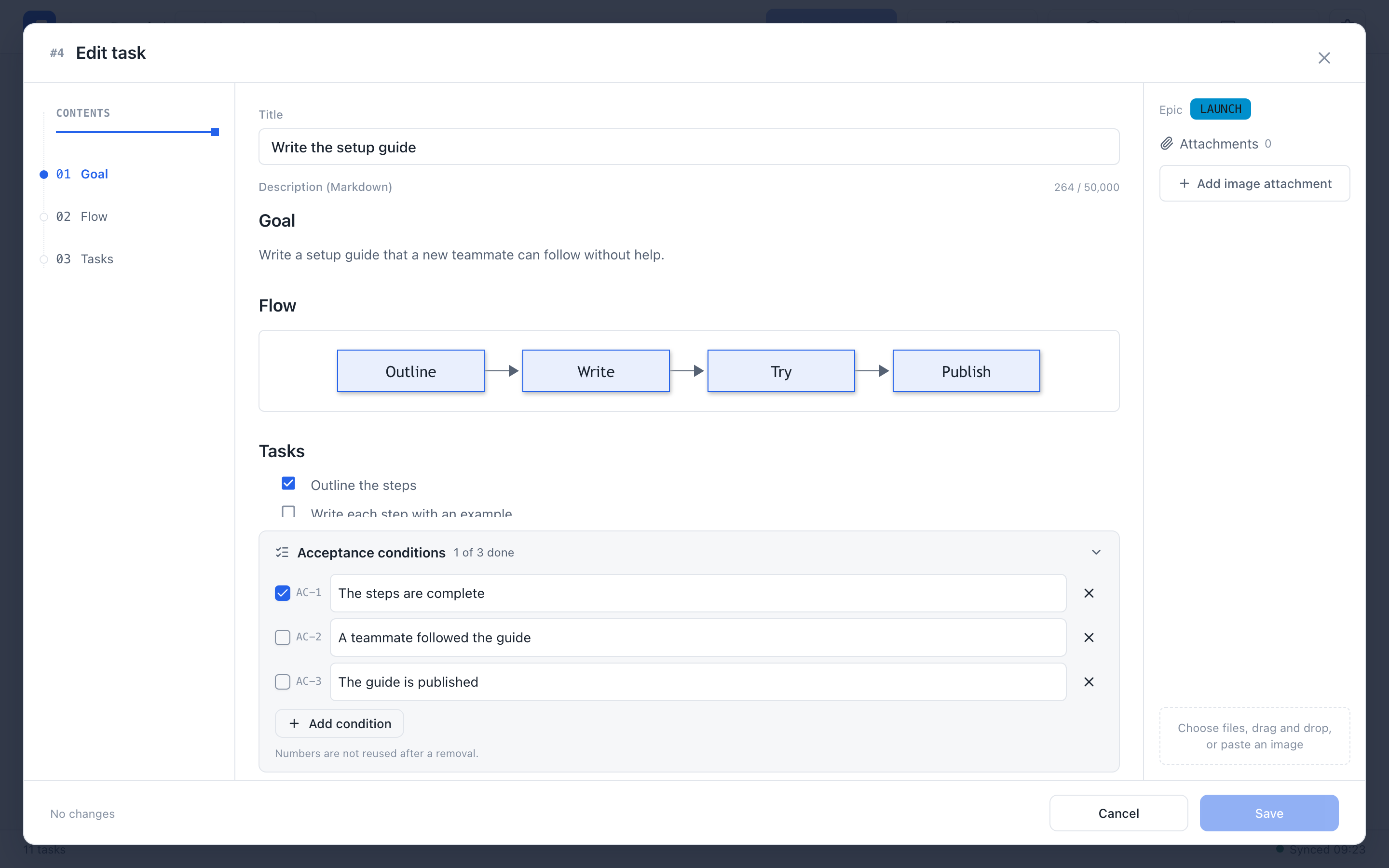
The editor shows the outline on the left, the Markdown body in the middle, and the epic and image attachments on the right.
- Formatting. The editor supports headings, task lists, tables, code blocks, Mermaid diagrams, and images. Click an image or a diagram to enlarge it.
- Outline. Use the outline to jump to a heading in the body. Edit acceptance conditions in the panel below the body.
- Saving. Save or cancel the dialog's changes together. Record verification before you check off a completion condition.
- Conditions. When you create or edit a task, its acceptance conditions sit in a panel below the body, which starts folded. Expand it to edit them; a long list scrolls inside the panel. Conditions have stable IDs and cannot be reordered. To read conditions on an existing task, use its Conditions tab. An epic has no conditions panel: its reference conditions are ordinary Markdown in its details.
For the epic dialog (name, color, details, and task order), see Epics and progress. For drafts, see The board.
Send a task request
Choose Add task in the board header to open the short request form. Enter what you want done, optionally choose an epic and attach images, then submit. The new AI-owned task appears in Todo with your complete request preserved in its body. The first non-empty line supplies its title, up to 100 Unicode characters.
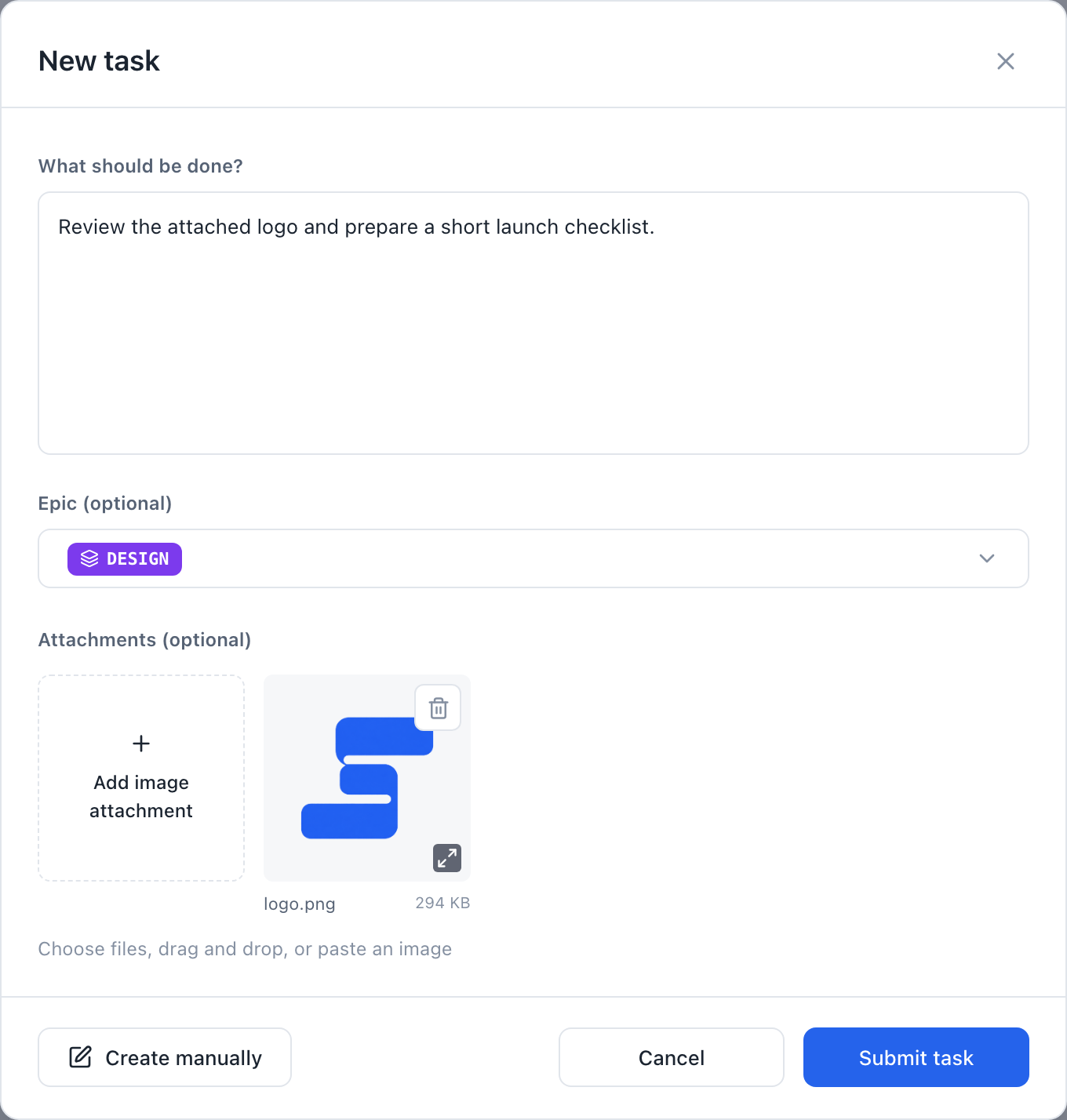
If an AI session is listening, it can pick up this task along with tasks already in Todo. If no session is listening, the task stays on the board for later. Create manually in the request form opens the existing full task editor, where you can set the title, description, assignee, draft state, conditions, and images yourself. The usual task editor and its save behavior remain available.
The request and its optional epic and images are saved together. The epic picker shows each epic's ID on a label in its configured color, both in the menu and after selection; its full name is available on hover. If saving fails, the form keeps your text and selected images so you can retry. Images are optional and use the same PNG, JPEG, WebP, and GIF limits as other task attachments.
Use the square Add image attachment tile at the left of the image row to select files. The tile and square previews share the same top edge, and adding images keeps the row in place. The tile remains at the left while you scroll through the previews. The form fits its content without leaving a large blank area below the attachments. You can also paste an image into the request text field or drop it into the attachment area. On shorter screens, the fields scroll while Cancel and Submit task remain visible.
Add images
In the browser editor, select, drop, or paste an image, then insert it into the text. Images can be PNG, JPEG, WebP, or GIF, up to 10 MiB each, with at most 20 per task and 50 MiB in total.
From the command line:
agboard --project "My project" attachment add 1 --file diagram.png --actor ai
agboard --project "My project" attachment ls 1 --json
agboard --project "My project" attachment get 1 "<attachment-id>" --output diagram-copy.png
Images are referenced in the Markdown as attachment:<attachment-id>, and the image bytes stay in local files. Snapshots include the image metadata; the progress table and hooks leave it out. attachment get never overwrites an existing output file.
Edit the files directly
Agents, and you, can also edit a task's TASK.md and an epic's EPIC.md as plain files; the board notices the change. Find the project's folder instead of guessing its location:
agboard --project "My project" workspace --jsonThe result contains folder (the project's absolute path), projectId, readme, tasks, and epics. Read the project's README.md first. Write a temporary file in the same folder and rename it over the original, so that the board never reads a half-written file. Use the CLI for metadata and status changes; never edit task.json, epic.json, project.json, or the lock files, and never delete task or epic folders by hand. Keep personal absolute paths out of shared files.
The required structure of these files is in Markdown file format.
Next
- Markdown file format: frontmatter, history, and automatic Done.
- CLI reference: every command.