

Project docs
Each project has a docs/ folder for its documents: strategy, specifications, designs, and notes. Open Docs in the board header to browse the folder and read a file. The dialog only shows the files; you write them in your own editor. The docs are separate from the board, so a change to a document never changes a task, an epic, or the board's history.
Open the docs
Choose Docs in the board header. The dialog shows the files on the left and the chosen file in the middle.
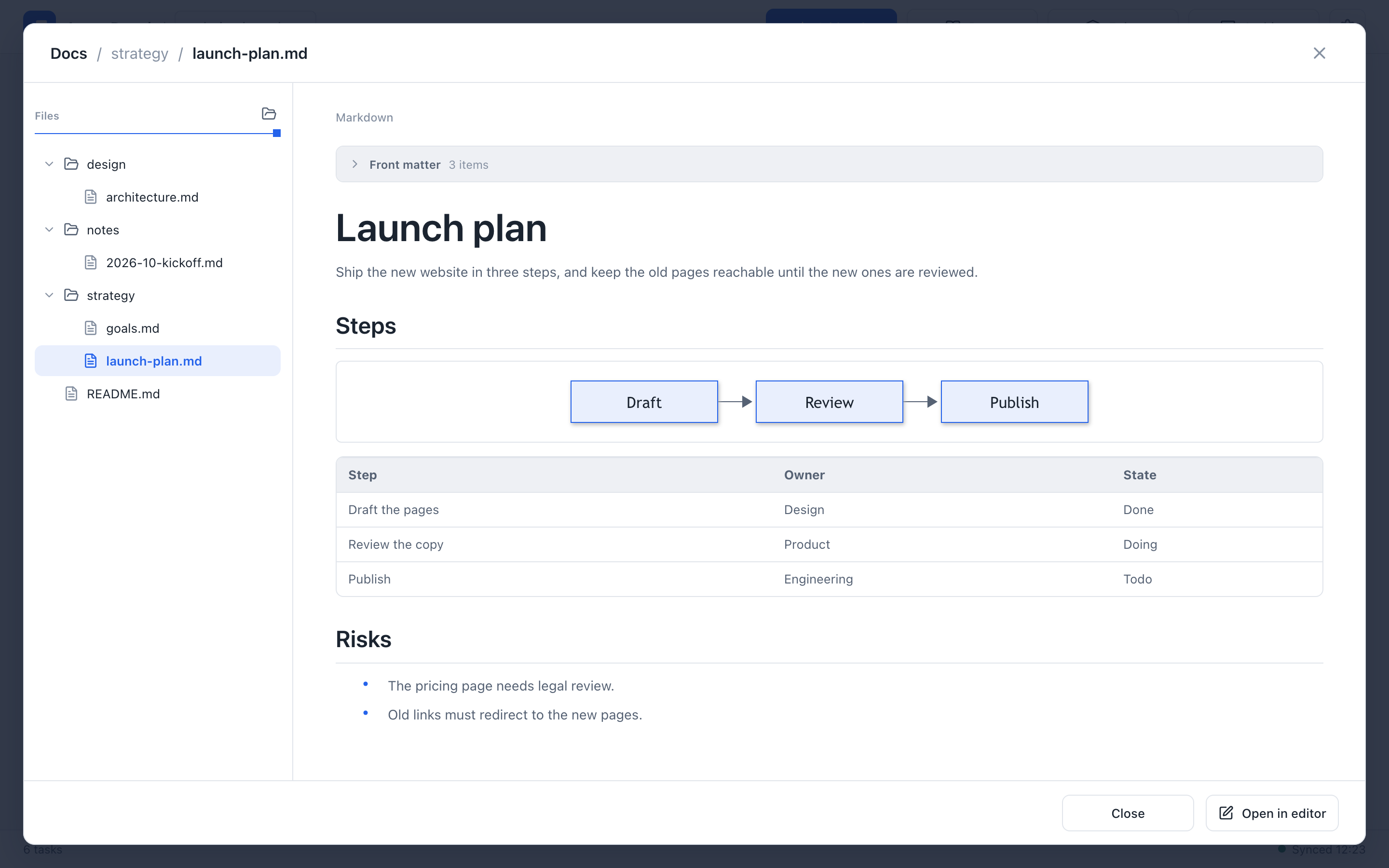
- Files. The list shows the folders and all files in the project's
docs/folder in order of name, folders and files mixed, so names that start with a number such as01_list in that order. Names that start with a dot and symbolic links are not listed. Drag the handle on the right edge of the list to change its width. A long name is shown whole, and the list scrolls sideways instead of cutting it off. - Open folder. The icon at the right end of the Files heading opens the project's
docs/folder in the computer's file manager, such as Finder. It appears only on the computer's screen, not on a phone-width screen. If the folder cannot be opened, a short message appears under the heading. - Body. Until you choose a file, the middle says Select a file. A file is read from disk each time you choose it.
What the body shows depends on the type of file:
| File | Shown as |
|---|---|
Markdown (.md) | The rendered document: tables, code blocks, Mermaid diagrams, and images. |
MDX (.mdx) | The document with its code run, in the same typography and theme as Markdown. |
Images (.png, .jpg, .jpeg, .webp, .gif, .avif, .svg) | The picture. |
Any other file, such as .pen, .json, or .txt | This file type cannot be shown here. with the file's name. |
- Front matter. A YAML block between
---lines at the top of a Markdown or MDX file is shown in a separate Front matter panel above the body, folded at first with the number of items. Choose it to show the lines. - Images in a document. An image written with a relative path, such as
, is looked up from the file's own folder. Images fromhttpandhttpsaddresses load as they do on the board. - Links in a document. Choosing a link with a relative path, such as
[Strategy](business/01_STRATEGY.mdx), opens that file in the dialog. The path is read from the file's own folder; a link to a folder opens itsREADME.md. The file list opens the folders above the file and shows it. A link tohttporhttpsopens in a new tab. If no file of the docs is at the end of a relative link, the footer says The linked file is not in the docs. The board itself never leaves the page.
If the project has no files, the dialog says This project has no docs and shows the folder's path, shared/projects/<project-id>/docs/ in the data area, with a button to copy it.
On a phone-width screen, the file list fills the screen. Choose a file to show it in place of the list, and choose Files in the footer to go back to the list.
MDX
An .mdx file is Markdown with JSX and JavaScript expressions in it. The dialog runs it and shows the result:
- The Markdown is GitHub Flavored, as in an
.mdfile: tables, task lists, strikethrough, and autolinks are drawn. - Standard HTML elements, expressions such as
{tasks.length}, and values and functions declared withexportwork. - Only registered components can be used. A component that is not registered, such as
<Chart />, is drawn as Unregistered component: Chart, and the rest of the document is still drawn. - A mistake in the MDX, such as a missing closing tag, or an expression that fails, shows a Runtime error: … box in place of the document.
- Colors written with the board's theme variables, such as
var(--r-text)orvar(--r-accent), follow the light and dark themes.
The code runs in an isolated frame that cannot reach the board's data or the network (see MDX in the Docs).
Edit a file
The dialog does not edit files. Choose Open in editor in the footer to open the chosen file in the app your computer uses for its type, such as a text editor, and edit and save it there. If the file cannot be opened, the left of the footer says Could not open the file.
To add, rename, move, or delete files and folders, use the folder itself, with Finder, Explorer, a text editor, or an agent:
agboard --project "My project" workspace --jsonThe folder in the result is the project's folder; its documents are in docs/ inside it.
Changes made outside the dialog
While the dialog is open, it follows the docs/ folder:
- A file or folder that is created or deleted appears in the list or leaves it.
- When the open file changes, the body shows the new content, and the left of the footer says The file changed, so the view was updated with the time.
- When the open file is deleted, its last content stays on screen, and the left of the footer says This file was deleted with the time.
Limits
- A Markdown or MDX file of up to 2 MiB can be shown. It must be UTF-8 text. An image can be up to 10 MiB.
- Agent Board creates
docs/when the project is created, with a shortREADME.mdin the app's language. If an older project has nodocs/, the server creates it at startup. AREADME.mdyou deleted is not put back. - Deleting the project with
agboard project rmalso deletes itsdocs/folder. Copy anything you want to keep first. - Docs are not shown on the mobile monitor.
Next
- Editing and image attachments: editing tasks and epics.
- Data and backups: where the data area is and how to back it up.